Opening the permissions page
This page is where your site's people and their access are managed, for every app on the site. Only admins can use it. Tap Sign in to start.
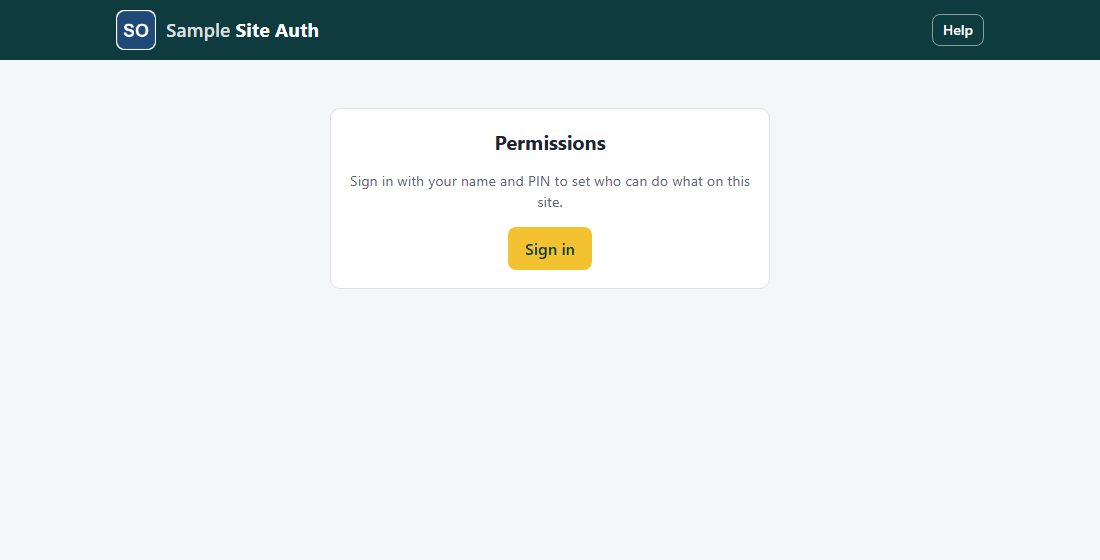
The permissions page (Site Auth) is where your site's people, their PINs and their access to each app are managed, in one place for every app on the site. People sign in to the apps themselves; this page is only for admins.
| Level | Who | What they can do here |
|---|---|---|
| Owner | The company that supplies the apps | Everything, on every app; ticks which apps the site has. |
| Site admin | The person who runs the site (for example the chair) | Adds, changes and removes people, sets their levels in every app, makes other site admins, fills in the site data. |
| App admin | Someone picked to run one app | Sets the levels of that one app only, and gives temporary PINs to its people. |
| App user | Everyone else | Doesn't use this page; signs in to the apps only. |
Every entry in the contents, and every link in the text, jumps to that topic. The pictures show a sample organization with made-up people.
This page is where your site's people and their access are managed, for every app on the site. Only admins can use it. Tap Sign in to start.
Sign in with the same name and PIN you use in the apps. Forgot your PIN? works here too.
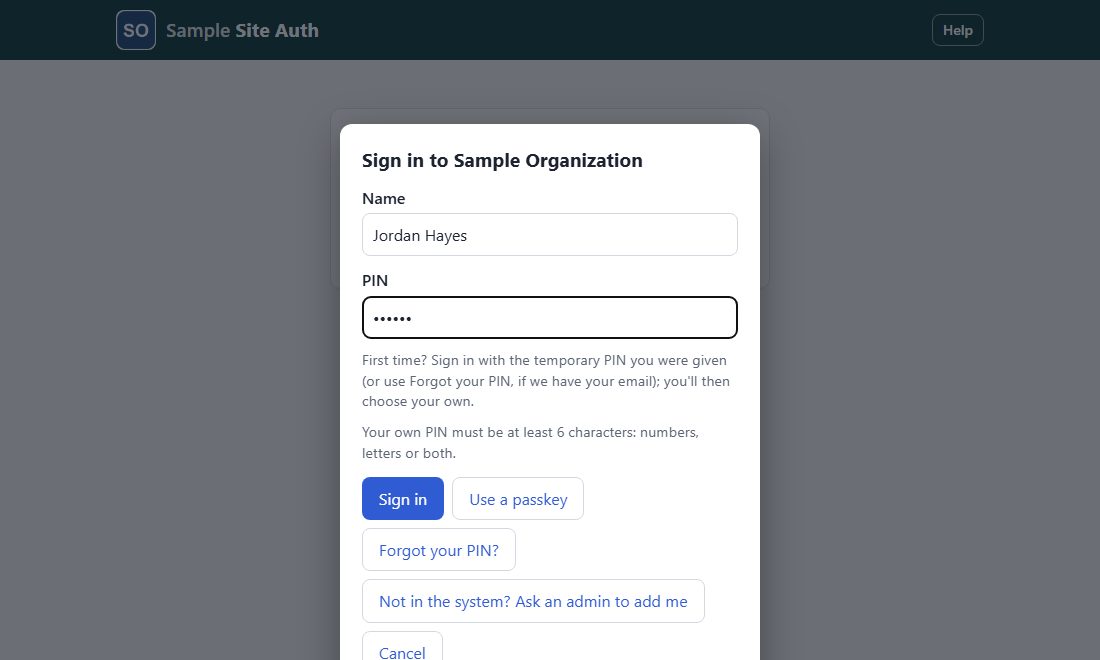
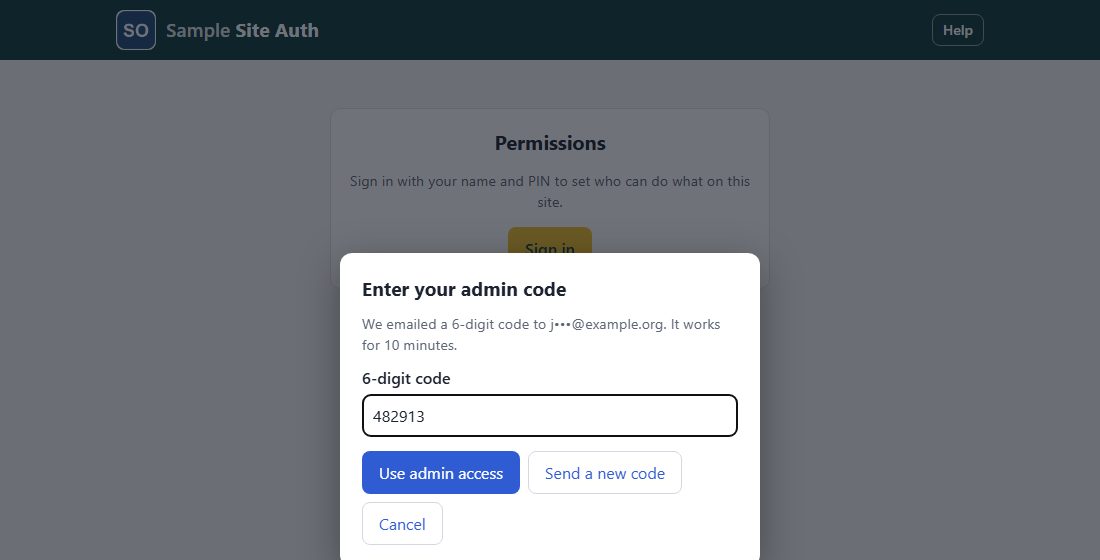
Because this page is for admins only, it goes straight to the admin code: a 6-digit code is emailed to the address on file for you. Type it and tap Use admin access. The code works once and expires in 10 minutes; Send a new code sends another. Anyone who is an admin needs an email address on file.
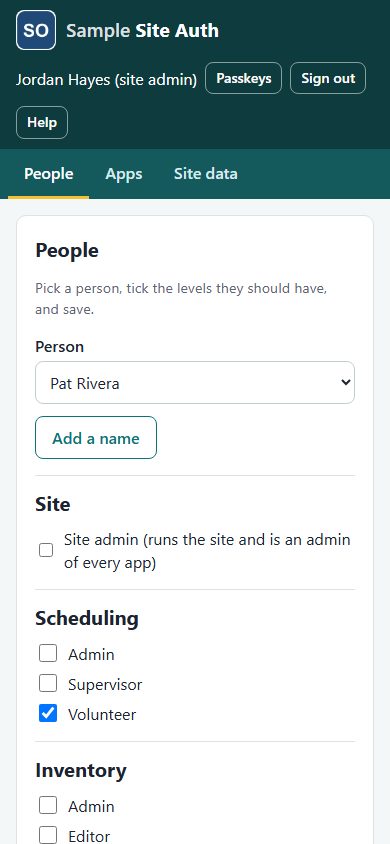
Under People, pick a person from the list. Their levels are shown app by app: tick the one they should have in each app and tap Save. A person has one level per app; ticking one clears the others, and unticking all removes their access to that app. Site admin makes them an admin of every app, so their app boxes are locked. App admins only see the apps they run.
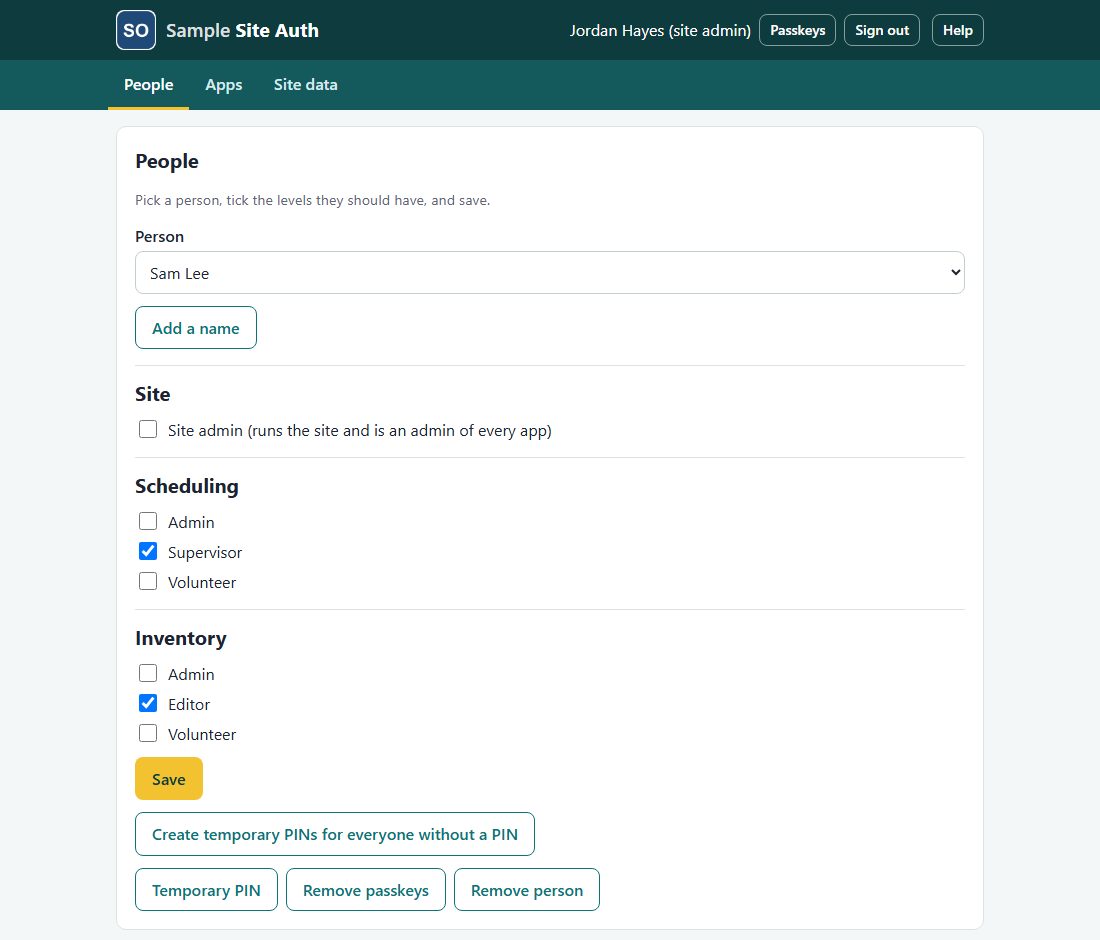
Tap Add a name, type the person's real name (the one they will sign in with) and tap Add. The new person has no levels yet: tick them and save. A new person has no PIN, so they can't sign in until you give them a temporary PIN (The temporary PIN sheet).
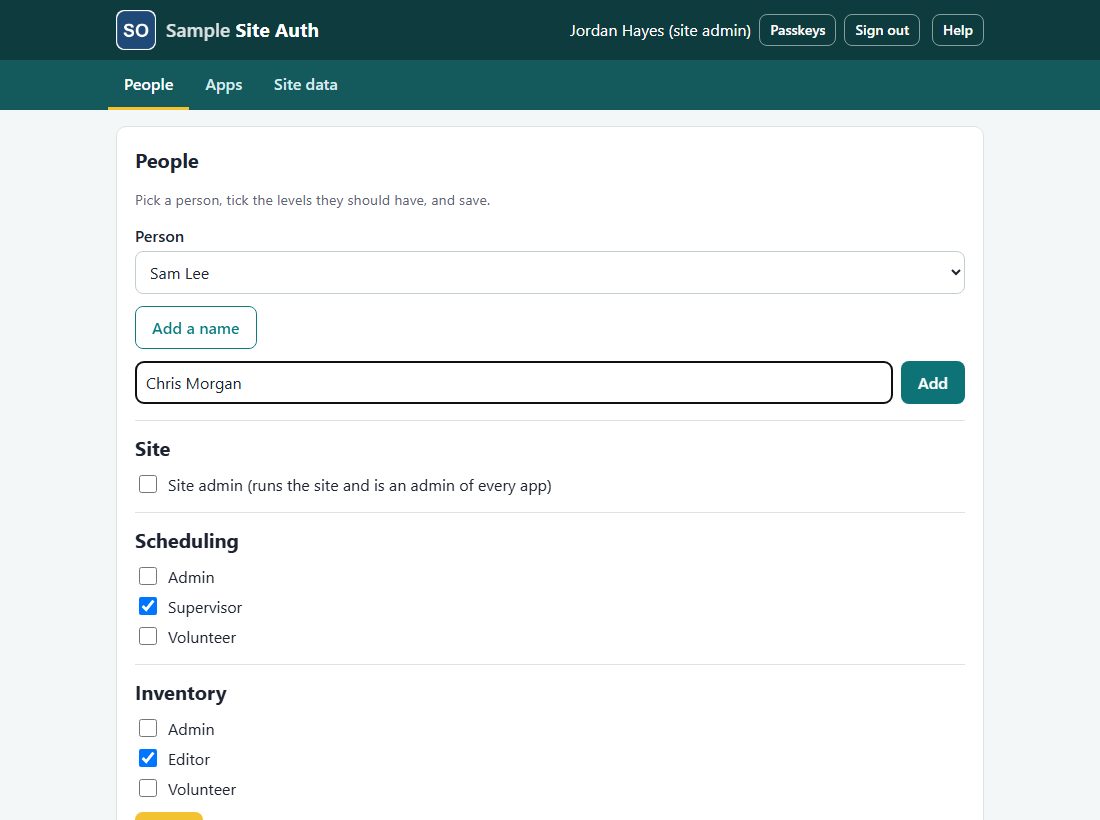
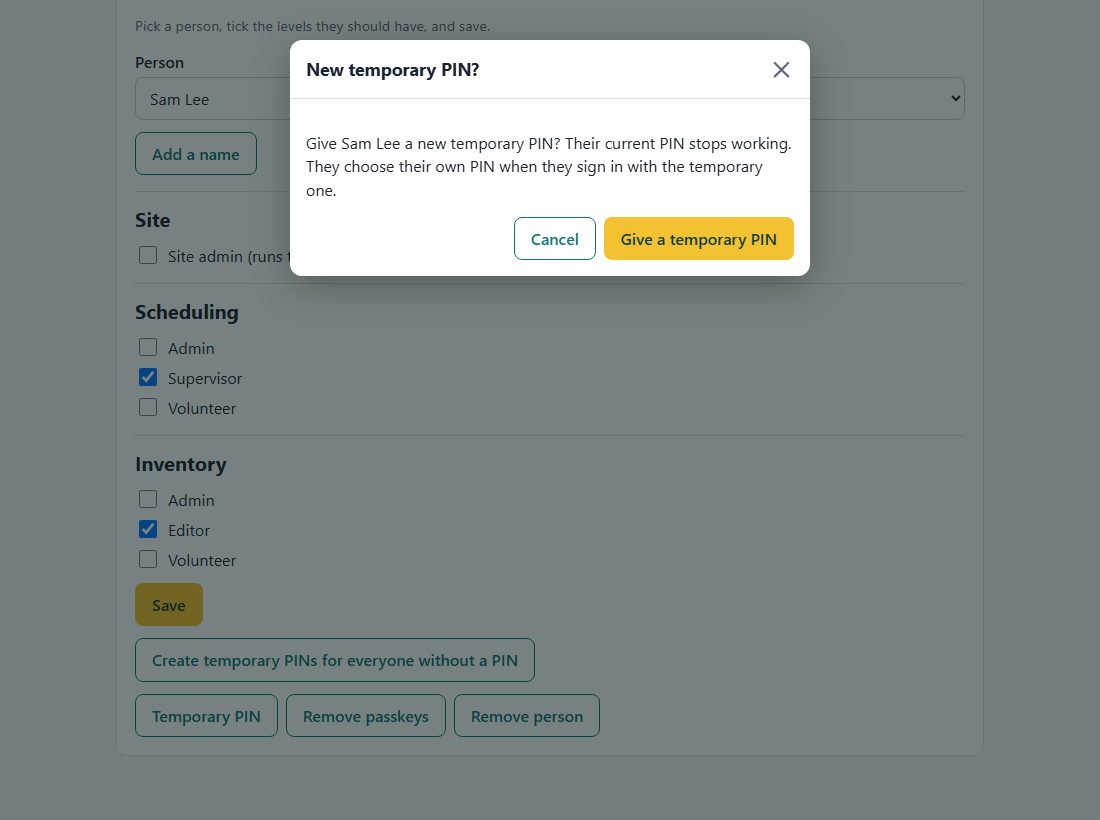
Pick the person and tap Temporary PIN, then confirm. It replaces any PIN they have.
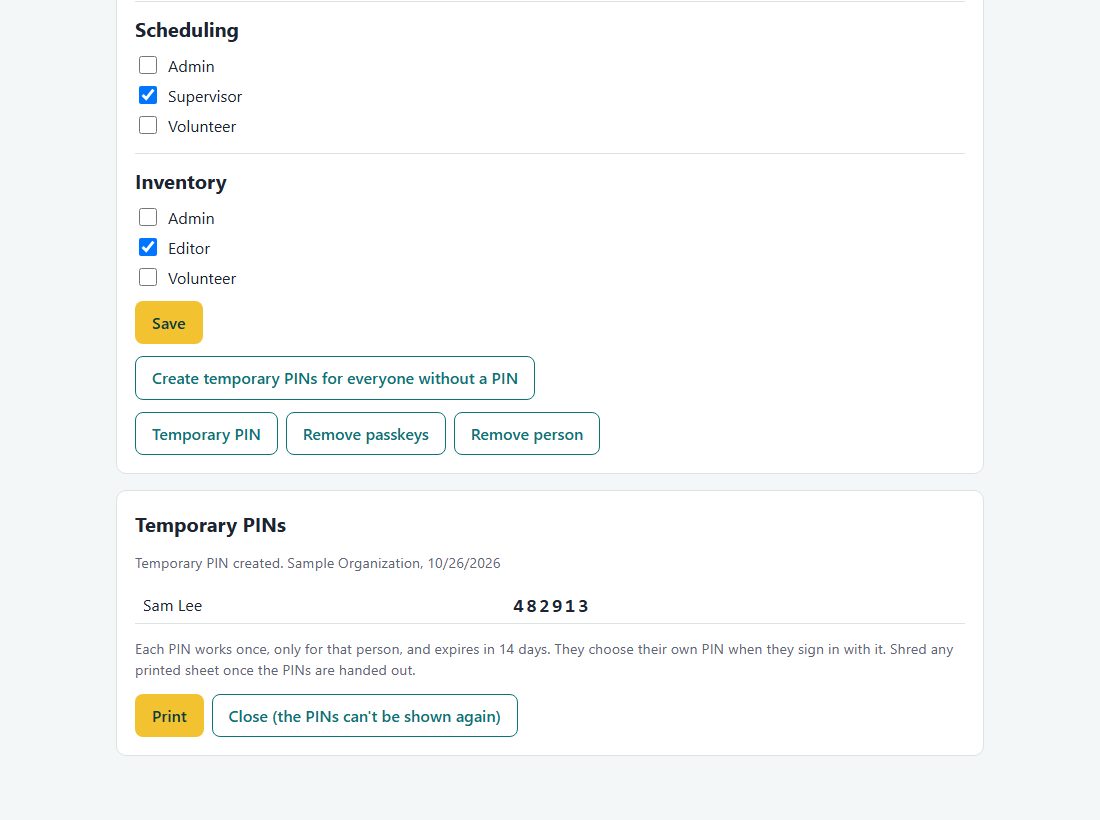
If the person has an email address on file, the PIN is emailed to them; otherwise it is shown here once for you to pass on (Print prints the sheet). A temporary PIN works once, only for that person, and expires in 14 days; signing in with it leads straight to choosing their own PIN.
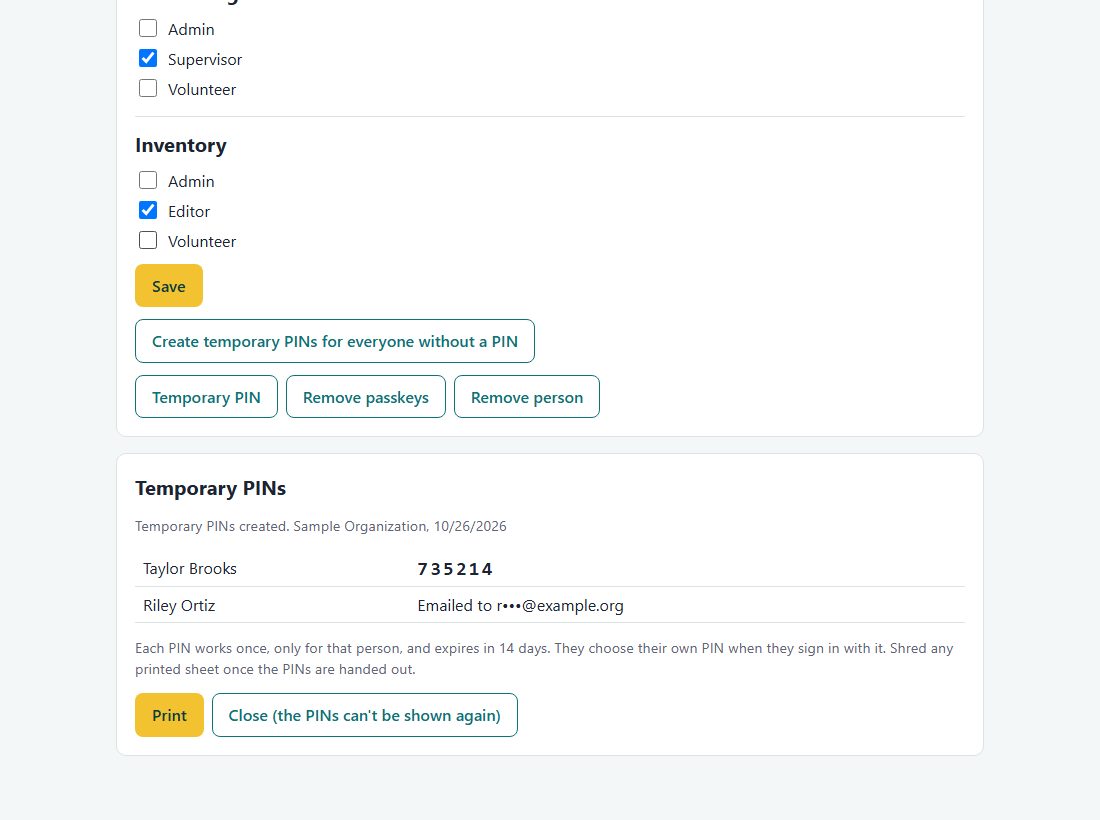
When you are ready for people to start signing in, tap Create temporary PINs for everyone without a PIN (site admins and owners). People with an email get theirs by email at once; the rest are listed on a sheet to print and hand out. Shred the sheet once the PINs are handed out.
If someone loses a phone or computer they used a passkey on, pick them and tap Remove passkeys. Their PIN still works, and they can add a new passkey on their new device.
Back to contentsRemove person (site admins and owners only) takes the person off the site: they can no longer sign in to anything here. An app admin unticks the person's levels in their app instead. Nobody can remove their own admin access, and the site always keeps at least one site admin.
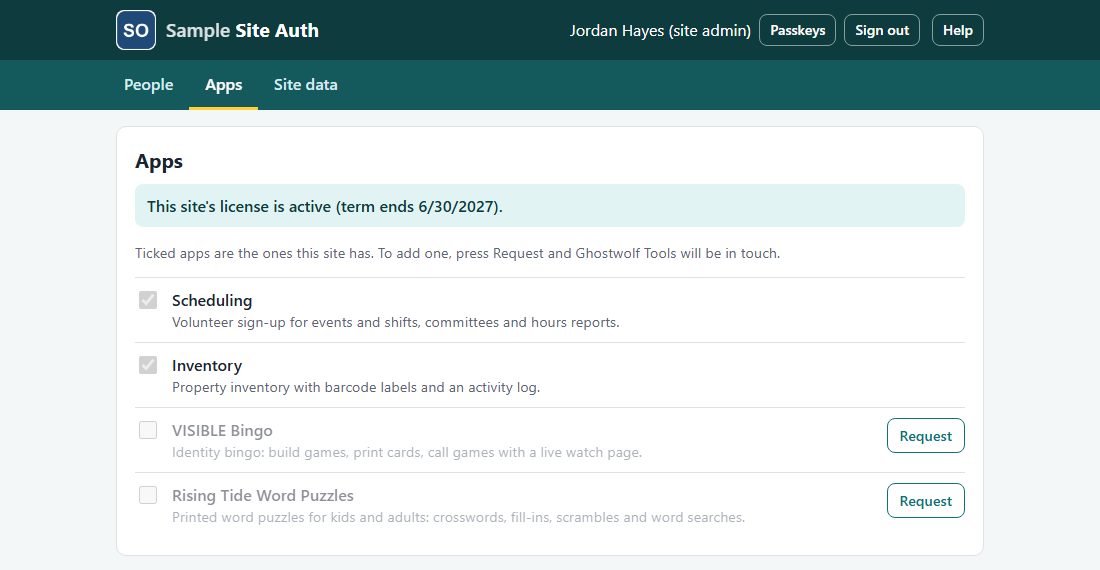
Back to contentsApps lists every app the company offers. The ticked ones are the apps your site has; the line at the top says whether the site's license is active and when its term ends. Apps the site doesn't have are grayed out with a Request button: tap it and the company is told you'd like that app (once a day per app).
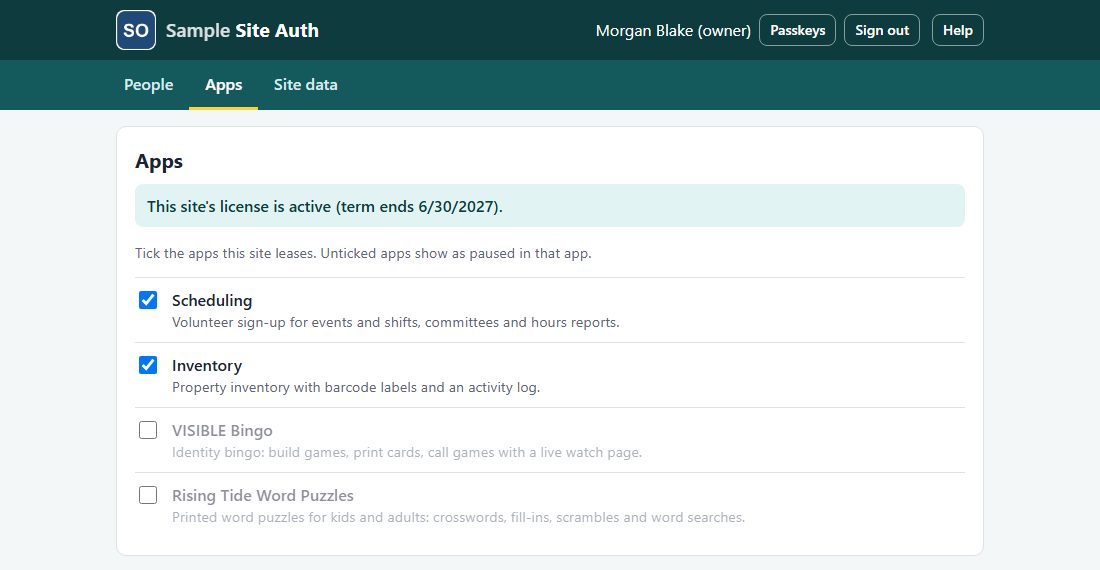
Signed in as an owner, the tick boxes can be changed: tick an app to switch it on for the site, untick it to pause it. A paused app shows its "paused" screen and can't be changed until it is ticked again.
Site data (site admins and owners) holds your organization's details once, for every app on the site: the site code (given by the company), the full name, the short name shown in app headers and on phone home screens, and the mailing address printed on reports. Tap Save site data when you change them.
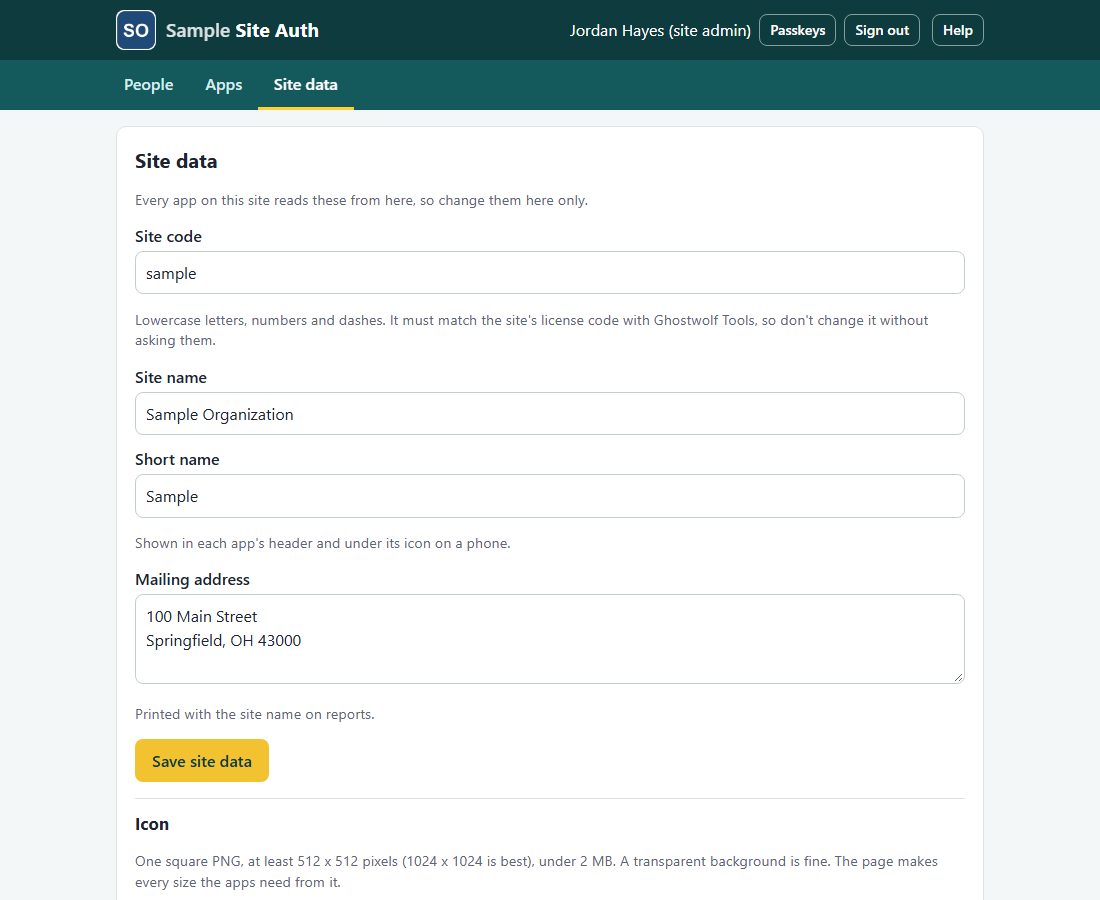
Choose one square PNG picture, at least 512 by 512 pixels (1024 by 1024 is best), under 2 MB; a transparent background is fine. The page shows a preview and makes all the sizes the apps need; tap Save icon. Apps show the new icon the next time they are opened (a phone that already added an app to its home screen may keep the old icon until it is added again).
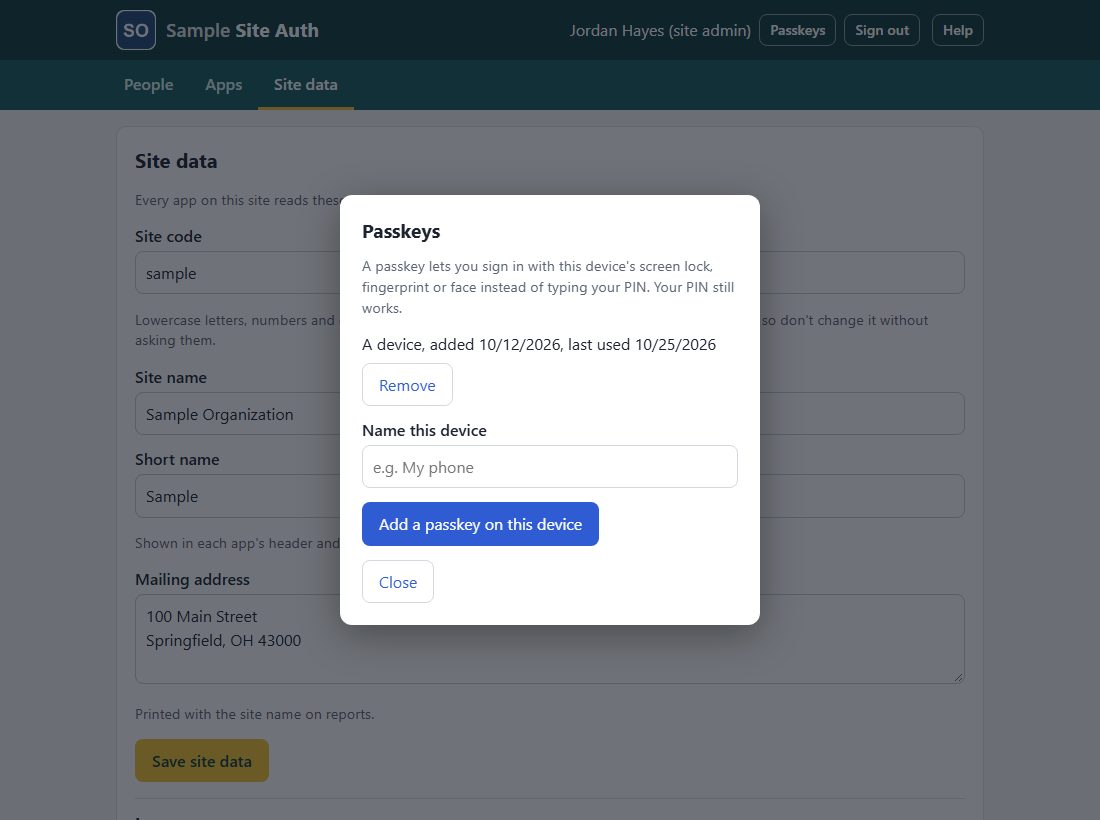
Back to contentsPasskeys in the header lets you sign in with your fingerprint, face or screen lock instead of typing your PIN. Name the device, tap Add a passkey on this device and follow its prompt. You still get the emailed admin code here. Remove a passkey from the same box.
The page works the same on a phone; the sections stack into one column.
Help at the top right opens this manual in a new tab. Tap Sign out when you are done; the page keeps your sign-in only while it is open.
Back to contents